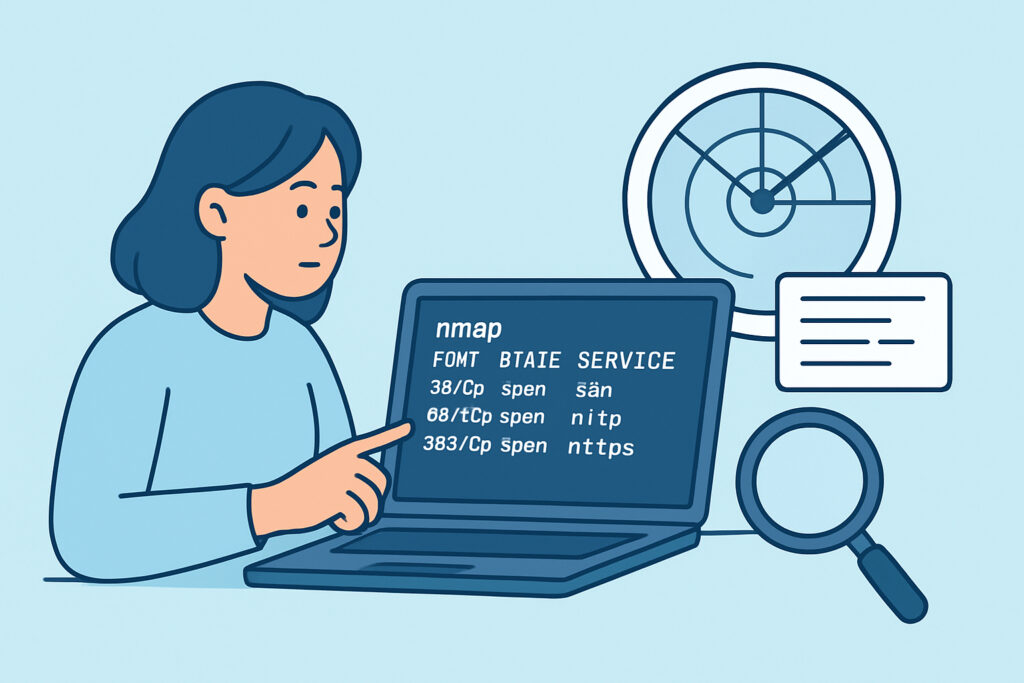
Nmap is often the first serious tool a new security-minded admin picks up, and the wall of text it spits back can feel more confusing than the problem it’s meant to solve. Learning to read Nmap output properly is the difference between running a scan for the sake of running it and actually understanding your server’s exposed attack surface.
This guide walks through a real Nmap scan output line by line, explains what each field actually means, and points out the mistakes beginners commonly make when interpreting results – including a myth that trips up even people who’ve been doing this for a while.
What a Basic Nmap Scan Output Looks Like
Run a simple command like nmap -sV 203.0.113.10 against a server and you’ll get something resembling this:
PORT STATE SERVICE VERSION
22/tcp open ssh OpenSSH 8.2p1
80/tcp open http nginx 1.18.0
443/tcp open https nginx 1.18.0
3306/tcp filtered mysql
At first glance it looks straightforward, but each column carries specific meaning that changes what action you should take next.
Breaking Down the PORT Column
The port number combined with the protocol (tcp or udp) tells you exactly which door on the server is being checked. Port 22/tcp is SSH, 443/tcp is HTTPS, and so on – but don’t assume the number always matches the “textbook” service.
Admins sometimes move SSH to a non-standard port like 2222 thinking it hides the service. Nmap’s version detection usually sees right through this because it probes the actual banner returned, not just the port number. This is one reason relying on port number alone for identification is a mistake beginners make early on.
Understanding the STATE Field
This is the field most beginners misread, and it’s worth slowing down on.
Open means a service is actively listening and accepting connections on that port. This is what you’re hunting for when assessing exposure.
Closed means the port is reachable but nothing is listening – the host responded with a reset packet. This isn’t a vulnerability, just information that the port is currently unused.
Filtered means Nmap couldn’t determine if the port is open because a firewall, router, or filtering device is dropping or blocking the probe. This is common and doesn’t necessarily mean the service is safe – it might just mean your scan angle didn’t reach it.
A full breakdown of these three states and the edge cases (like open|filtered and closed|filtered) is covered in more detail in a piece on understanding port states, which is worth bookmarking the first time these results confuse you.
Reading the SERVICE and VERSION Columns
The SERVICE column is Nmap’s best guess at what protocol is running, based on a combination of the port number and, if you used -sV, an actual probe of the service banner. The VERSION column – only populated with -sV – is where the real security value lives.
Seeing “OpenSSH 8.2p1” instead of just “ssh” lets you cross-reference that exact version against known CVEs. This single piece of data turns a scan from “port 22 is open” into “port 22 is running a version with a known authentication bypass from 2021” – a completely different risk conversation.
Version detection isn’t perfect though. Services behind proxies, load balancers, or intentionally obfuscated banners can return misleading or blank version strings. When that happens, don’t assume the absence of a version means the absence of risk.
A Common Myth: “Filtered Means Safe”
This is worth calling out directly because it causes real incidents. A lot of admins see “filtered” in their scan results and mentally file it under “handled, move on.” That’s not always true.
Filtered often just means a stateful firewall is sitting in front of the port and silently dropping packets rather than rejecting them. The service behind that firewall could still be reachable from other network paths, through IPv6 if only IPv4 was scanned, from an internal segment, or after a firewall rule change nobody remembers making. Filtered is a statement about what your scan saw, not a guarantee about what’s actually running.
Treat filtered results as “unknown, worth re-checking” rather than “confirmed protected.”
Step-by-Step: Interpreting a Full Scan Result
When you get a scan report back, work through it in this order:
1. List every port marked open and note the service name.
2. Cross-check each open port against what you expect to be running on that server – anything unexpected gets flagged first.
3. Note the version string for each service and check it against a CVE database for known issues.
4. Review filtered ports separately – don’t dismiss them, but don’t panic either. Confirm whether the filtering is intentional.
5. Compare this scan against your last one. New open ports since the previous scan are the highest-priority items to investigate.
That last step matters more than most beginners realize. A single scan is a snapshot; the real value comes from comparing scans over time, which is exactly the kind of pattern-matching a guide on interpreting port scan results like a security pro goes into further.
Why Version Detection Changes the Whole Picture
It’s tempting to stop at “port open, service identified” and call the job done. But the version string is what actually connects a scan result to real-world risk. An outdated FTP or database service on an open port isn’t inherently dangerous because it’s reachable – it’s dangerous because of the specific, documented vulnerabilities tied to that exact build. For a deeper look at how this detection process works and where it can be unreliable, see the explanation of how version detection helps identify vulnerable services.
FAQ
Why does Nmap sometimes show the wrong service name for an open port?
Nmap makes an educated guess based on standard port assignments unless you run version detection with -sV, which actively probes the port and reads the response banner. Custom or non-standard configurations can still confuse even -sV, especially behind proxies.
Should I be worried about every filtered port in my results?
Not automatically. Filtered usually means a firewall is doing its job, but it’s worth confirming that filtering is intentional and consistent, rather than assuming it always equals “secure.”
How often should a beginner run these scans to build a useful baseline?
Running a scan after any infrastructure change is a good habit, but a recurring schedule matters more than one-off checks – it’s the only way to catch a port that opens unexpectedly between deliberate changes.
Reading Nmap output well comes down to treating each column as a separate question: what’s the port, is it actually reachable, what’s listening, and what version is it running. Get comfortable answering those four questions correctly and the rest of port security work – prioritizing fixes, tracking changes, hardening configurations – gets a lot easier to reason about.