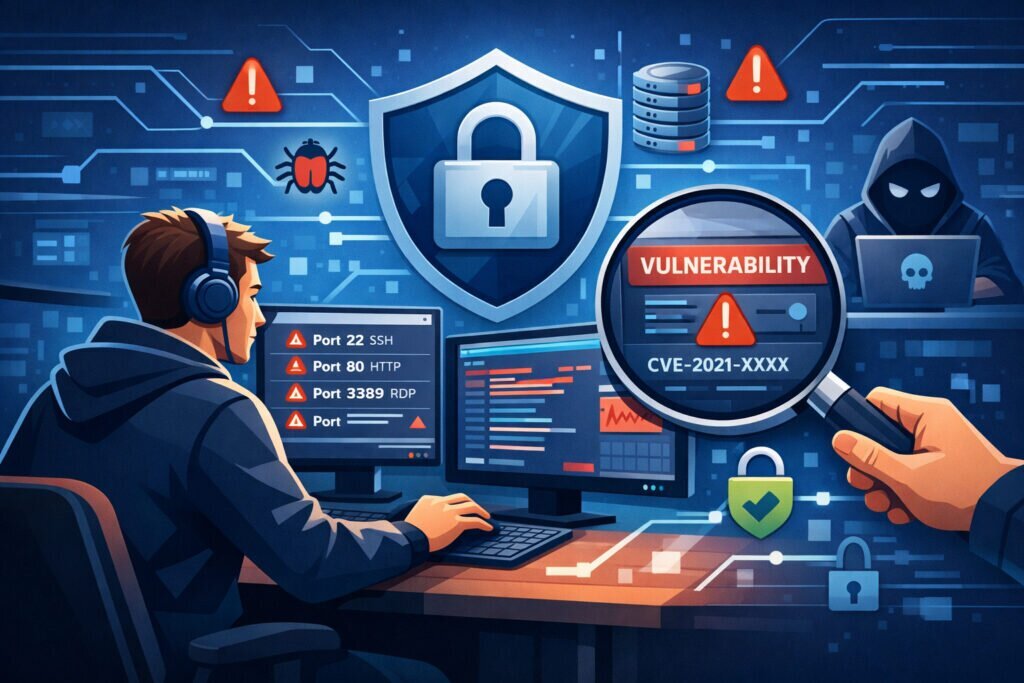
Learning how to interpret port scan results is the difference between staring at a wall of numbers and actually understanding your server’s security posture. Whether you’re a sysadmin who just ran your first Nmap scan or a seasoned engineer reviewing automated monitoring output, making sense of port states, service banners, and version data is a skill that directly prevents breaches.
Most people can run a scan. Far fewer know what to do with the output. This article walks you through reading port scan results the way a penetration tester would — identifying real risks, ignoring noise, and prioritizing what actually matters.
Understanding the Basics: Port States Explained
Every port in your scan results will show one of a few states. The three you’ll see most often are open, closed, and filtered. An open port means something is actively listening and accepting connections. A closed port responds but has no service behind it. A filtered port doesn’t respond at all — usually because a firewall is silently dropping packets.
Here’s where beginners go wrong: they see “closed” and think everything is fine. Closed is better than open, sure, but it still tells an attacker your host is alive and responding on that port. Filtered is generally what you want for ports you’re not using — complete silence gives the least information away.
If you need a deeper dive into what each state means for your infrastructure, check out the guide to port states.
Reading Service Banners and Version Detection
The port number alone tells you almost nothing useful. Port 443 is usually HTTPS, but I’ve seen organizations running admin panels, database interfaces, and even SSH tunnels on 443 to get through corporate firewalls. That’s why service detection matters more than port numbers.
When your scan identifies what’s actually running — say, Apache 2.4.49 on port 8080 — now you have something actionable. You can check whether that specific version has known CVEs. In the case of Apache 2.4.49, it absolutely does — a path traversal vulnerability (CVE-2021-41773) that was actively exploited in the wild.
A good scan result will show you the application name, version string, and sometimes even the operating system. This is gold for security assessment. If your scan tool is only showing port numbers without version information, you’re working with one eye closed. Understanding how version detection helps identify vulnerable services can dramatically change your remediation priorities.
Prioritizing What Actually Matters
Here’s a scenario most sysadmins will recognize. You run a scan against a production server and get back 12 open ports. Panic sets in. But reacting to every open port equally is a waste of time and can actually make things worse if you start closing ports without understanding dependencies.
Instead, triage like a pro:
Critical priority: Any port running a service with a known vulnerability, especially if it’s internet-facing. Database ports (3306, 5432, 27017) exposed to the public internet are always urgent — there’s no legitimate reason for these to face the world without a VPN or tunnel.
High priority: Services running outdated versions, even without a known CVE today. An old OpenSSH version or an unpatched web server is one disclosure away from being actively exploited.
Medium priority: Ports that are open but shouldn’t be based on your expected configuration. Maybe someone spun up a dev tool on port 9090 and forgot about it. These unnecessary open ports expand your attack surface for no benefit.
Low priority: Expected services, current versions, properly configured. Confirm and move on.
The Myth of “Safe” High-Numbered Ports
Let’s bust a persistent misconception: moving a service to a non-standard high port does not make it secure. Running SSH on port 2222 or 49152 instead of 22 will reduce automated bot noise in your logs, yes. But any real attacker performing reconnaissance will find it in seconds. A full port scan covers all 65,535 ports, and an experienced attacker will specifically look for services hiding on unusual ports — it often signals something interesting.
Security through obscurity isn’t security. It’s a slight inconvenience for attackers and a false sense of comfort for defenders. Real protection comes from proper authentication, up-to-date software, and firewall rules that restrict access by source IP when possible.
Comparing Scan Results Over Time
A single scan is a snapshot. The real power comes from comparing results across time. If last week your server had 8 open ports and today it has 11, something changed — and you need to know what and why.
This is where manual scanning falls apart. Nobody consistently runs and compares weekly scans by hand. That forgotten cron job, that new microservice a developer deployed on Friday afternoon — these things slip through unless you have continuous monitoring catching changes automatically.
When a new port appears, your immediate questions should be: What service is it? Who deployed it? Was it authorized? Is it patched? This workflow is exactly what automated alerting for new open ports solves — you get notified the moment your attack surface changes.
External vs. Internal Perspective
One more thing that separates professionals from amateurs: always scan from outside your network. Internal scans show you what’s listening on the machine, but that’s not what attackers see. NAT rules, load balancers, cloud security groups, and firewall configurations all change what’s actually reachable from the internet.
I’ve seen situations where a team was confident their database wasn’t exposed because the local firewall rules looked correct — but a misconfigured cloud security group had port 5432 wide open to the world. An external scan would have caught it immediately. That’s the perspective that matters for understanding your real attack surface.
FAQ
What tools should I use to scan my ports?
Nmap is the industry standard for manual scans — it’s free, powerful, and well-documented. For ongoing monitoring, you want an automated external scanning service like PortVigil that continuously checks your servers and alerts you to changes without you having to remember to run anything.
How do I know if an open port is dangerous?
An open port is only as dangerous as what’s behind it. Check the service and version running on it, look up known CVEs for that version, and determine whether that port needs to be accessible from the internet. An open port running a patched, properly configured service behind authentication is vastly different from an unpatched service with default credentials.
Should I close every port that isn’t strictly necessary?
Yes — this is the principle of least exposure. Every open port is a potential entry point. If a service doesn’t need to be internet-facing, put it behind a VPN or restrict access by IP. The fewer ports you expose, the smaller your attack surface and the less you have to monitor and maintain.
A final tip from years of doing this: don’t just scan and file the report. Every scan result should end with an action — a port closed, a service updated, a configuration hardened, or at minimum a conscious decision that the current state is acceptable. The scan is only valuable if it changes behavior.