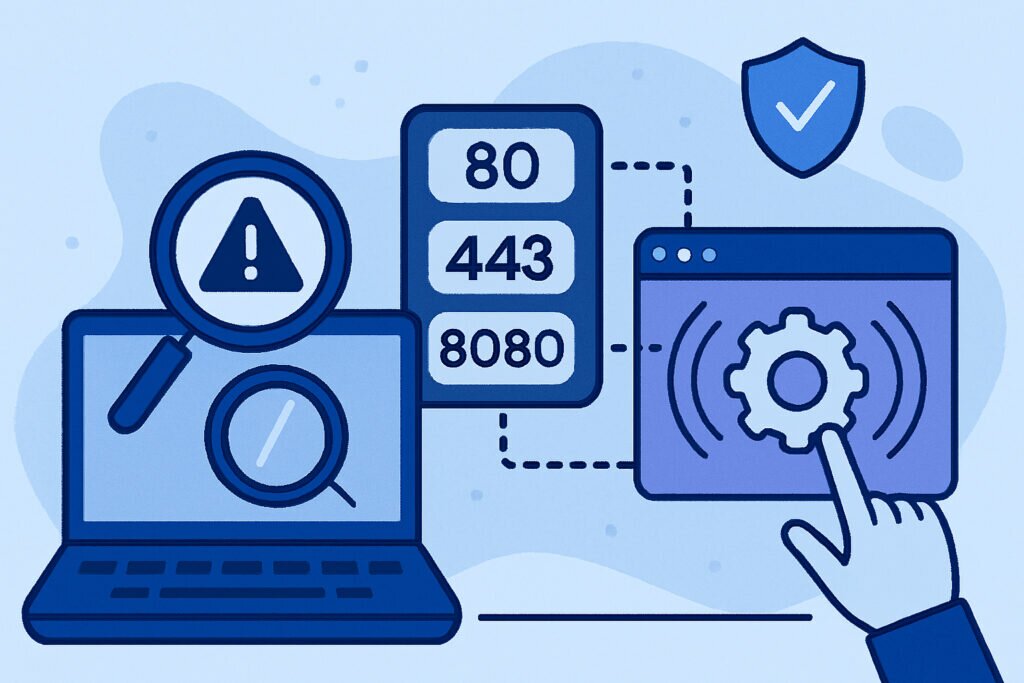
If you’re running a server, there’s a good chance you’ve installed applications over time without keeping a detailed inventory of what’s actually listening on your network ports. Each open port is a potential entry point for attackers, and third-party applications can create vulnerabilities you might not even be aware of. Understanding what’s running on your server and which ports are exposed isn’t just good practice—it’s essential for maintaining security.
Why Third-Party Application Audits Matter
I learned this lesson the hard way a few years back when I discovered an old monitoring tool still listening on port 8080. The software hadn’t been updated in over two years, and it had three known CVEs that could have given an attacker remote access. The application wasn’t even in use anymore, but there it was, quietly creating a security hole. That experience taught me that regular audits aren’t optional—they’re necessary.
Third-party applications are particularly risky because they’re developed outside your direct control. You’re trusting someone else’s code, and you might not know when vulnerabilities are discovered or if patches are available. When these applications listen on network ports, they become part of your attack surface. The more applications you run, the larger that surface becomes.
Starting with a Complete Port Inventory
The first step is understanding what’s actually listening on your server. On Linux systems, I typically use netstat or the newer ss command. The command ss -tulpn gives you a clear view of all TCP and UDP listening ports along with the process IDs and names.
For a more detailed analysis, lsof -i shows which files and processes are using network connections. This is particularly useful because it reveals not just the port number but also the specific process and user running it. On Windows servers, netstat -ano combined with Task Manager helps identify processes by their PID.
What often surprises people during their first audit is just how many ports are open. You might expect to see your web server on 80 and 443, SSH on 22, and maybe a database on 3306. But then you discover ports 8080, 9000, 5432, and several others you don’t immediately recognize. Each one deserves investigation.
Identifying What’s Behind Each Port
Once you have your port list, the real detective work begins. For each listening port, you need to determine what application is responsible and whether it should be there. Start with the process name from your port scan, but don’t stop there.
Check the application’s configuration files to understand why it’s listening and on which interfaces. Is it bound to localhost only, or is it exposed to the entire internet? A database listening on 0.0.0.0:3306 is very different from one bound to 127.0.0.1:3306. The first is accessible from anywhere, while the second is only reachable from the local machine.
Research the application version. This is where things get interesting with third-party software. You might find that monitoring agent you installed three years ago is now five versions behind, or that analytics tool is running code with known vulnerabilities. Use the application’s –version flag or check its about page, then cross-reference with the CVE database.
Assessing Risk and Necessity
Not every open port is a problem, but every open port needs justification. Ask yourself: is this application still needed? Is it configured securely? Is it up to date? Can it be restricted to specific IP addresses or moved behind a firewall?
I once found a development API server still running on a production machine, listening on port 8000. It had been used for testing months earlier but never shut down. The API had no authentication and could have exposed sensitive data. Shutting it down took seconds, but finding it required actually doing the audit.
For applications you do need, verify their security posture. Check if they support authentication, use encrypted connections, and follow security best practices. Many third-party applications ship with default credentials or permissive configurations that assume you’ll harden them—but many administrators never do.
External Scanning Validates Internal Audits
Internal scans show you what’s listening, but external scans show you what’s actually reachable from the internet. There’s often a difference due to firewalls, NAT, or misconfigured network rules. Use tools like nmap from an external host to scan your public IP address: nmap -sV -sC your-server-ip.
This external perspective often reveals surprises. You might think that database port is protected by your firewall, but an external scan could show it’s wide open. Or you might discover that old VPN server is still accessible even though you thought you’d disabled it.
Documentation and Ongoing Monitoring
Create a simple spreadsheet documenting every legitimate listening port: the port number, the application, its purpose, who requested it, and when it was last reviewed. This becomes your baseline for future audits.
But documentation alone isn’t enough because things change. Applications get updated, new software gets installed, and configurations drift over time. That’s why continuous monitoring matters. Automated tools can alert you when new ports start listening or when known applications change their behavior.
Common Mistakes to Avoid
One myth I hear often is that if you didn’t manually open a port, it’s not really open. This is dangerously wrong. Applications can and do open ports as part of their normal operation, often without clearly informing you. Package managers install dependencies that might start their own services. Always verify, never assume.
Another mistake is focusing only on well-known ports below 1024. Attackers don’t care if your vulnerable service is on port 22 or port 54321. Every listening port matters.
Taking Action on Your Findings
Once you’ve identified third-party applications and assessed their risks, take action quickly. Disable unnecessary services, update vulnerable software, and restrict access where possible. Use firewall rules to limit which IP addresses can reach specific ports. Consider using a VPN for administrative interfaces instead of exposing them directly to the internet.
For critical applications that must remain accessible, ensure they’re protected by strong authentication, kept updated, and monitored for suspicious activity. Set reminders to review these applications regularly—quarterly audits work well for most environments.
The goal isn’t to eliminate all third-party applications or close every port. The goal is to know exactly what’s running, why it’s running, and that it’s configured securely. That awareness alone will significantly reduce your risk.